
Fun, intelligent SciFi without wars or potty-mouth heroes.
- Laptop Power Flowchart
- LCD Problem Flowchart
- Laptop Battery Charging
- Troubleshooting Laptop Overheating
- Wireless Internet Connections
- Laptop Hard Drive Failure
- Extending Laptop Battery Life
- Buying a Second Hand Laptop
Copyright 2018 by Morris Rosenthal
All Rights Reserved
Laptop Won't Power On
Warning! Before Disassembling Laptop always unplug power and remove the battery.
When your laptop won't turn on with the AC power adapter plugged in, many people assume the adapter has failed and run out to buy a new one. That's an expensive way of troubleshooting a problem that you probably don't have. The flowchart and text below are from the collection of twelve flowcharts in The Laptop Repair Workbook which were specifically designed to help you troubleshoot laptop hardware problems before spending money on parts.
The diamond symbols are linked to text that explains each decision point.
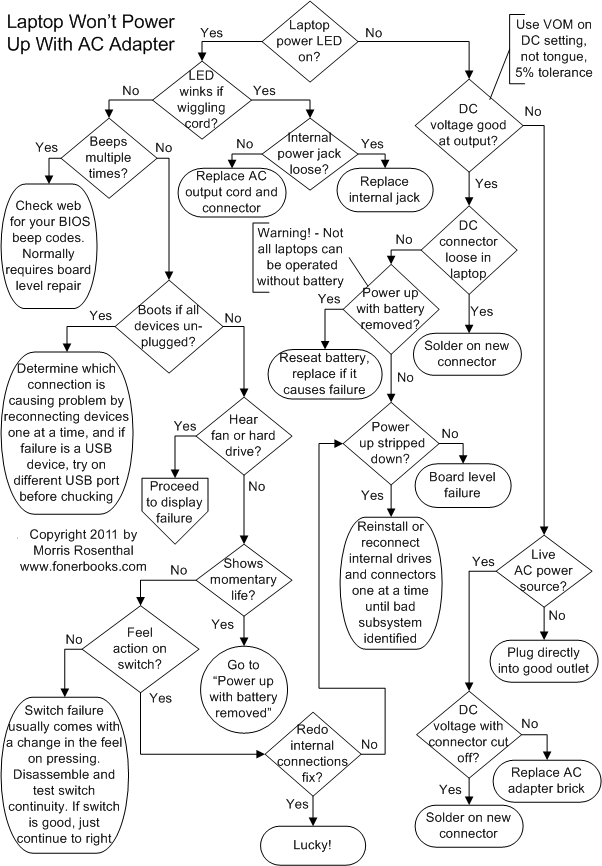
Troubleshooting a AC/DC Adapter Problem and Laptop Power Connector
Note that these steps correspond with decision points on the flowchart and are reached through the interactive diamond symbols. The text below cannot be read sequentially.
Laptop Power Led On? Most laptops have a series of LED's on the front edge that offer a basic status report. Normally, there are separate LEDs that will light when the when the laptop power cord is plugged in, when the battery is charging, and when the laptop is powered on. In addition, there may me LEDs for hard drive and wireless activity and for DVD or CD action. SOme laptops even feature a power button that lights when the power is turned on. In this particular diagnostic step, we're interested in the LED that shows that external power is connected or that the battery is charging. These are the only LEDs that should be lit when the laptop isn't turned on but is plugged into a live AC adapter.
LED winks if wiggling power cord? If the LED showing that power cord is connected or that the battery is charging winks and blinks when you wiggle the power cord plugged into the laptop, it could mean that the power supplied is too intermittent to charge the battery or carry the system though a power on cycle, unless the cord is in the perfect position.
Beeps multiple times? Laptops, like desktop PCs, go through a POST (Power On Self Test) process when turned on. If the POST carried out buy the BIOS (the Basic I/O system that operates the notebook until the operating system loads) detects a failure, it may report the failure through a series of beeps, whether or not it can light up the screen despite the failure. These beep codes are specific to the BIOS manufacturer and are sometimes proprietary to the laptop manufacturer or model as well, but you can usually find out what they signify by Googling "Beep Code" and the brand and model of your laptop.
Boots if all devices unplugged? One of the easiest power on problems to troubleshoot is when an external device, such as a printer, a network connection, a PCMCIA (Personal Computer Memory Card International Association) card, video monitor, or even a jump drive or USB mouse is preventing the laptop from powering on. This may occur due to a short circuit or electrical problem in the external device or a problem with the port inside the notebook, but it can be easily tested by removing all external devices (except the AC power adapter).
Hear fan or hard drive? When one or more status LEDs on the laptop are lit, it may be that the basic power circuitry is functioning, but the boot process is being aborted before it even starts. If you can hear the hard drive spinning up or the CPU fan come on and stay on, or if the hard drive activity LED blinks away merrily, there's a good chance that the problem is isolated to the video display subsystem. One quick test is to attach an external monitor, though you may have to use a key combination (normally the master Fn (Function) key along with one of the other keys along the top of the keyboard) to tell the laptop that you want to enable the external video port. I'm planning on tackling video subsystem failure in laptops on another flowchart.
Shows momentary signs of life? Does the hard drive spin up and stop, or can you hear the fan click on and off. Do the LED's change state when you press the power button, even for a moment? Does the screen show any changes, even just a passing ghost of an image or some bright spots along an edge? All of these may be signs of powering up with a stone dead battery or a battery with an internal wiring failure in a laptop that requires the battery presence as part of the basic power circuit, usually as a giant capacitor.
Feel action on switch? Notebook switched vary as much as keyboards in feel, but you should feel some initial resistance when you press the power switch, and there should also be a tactile switching feel. If that feel is absent, if the switch moves up and down loosely, it's probable that the switch has physically failed. Unfortunately, there's a lot of taking apart involved to get at and test the switch in most laptop designs, but fortunately, it's not a common failure.
Redo internal connections fix? Laptops get moved around, vibrated, bounced about and even flexed far more than desktop PC's. While laptop manufacturers use specially designed connectors, tape, and stress relievers to counter vibrations, it's not uncommon for connectors to work free. Find an illustrated guide that details how to open up your specific model of notebook (there's a lot of variations and tricks), take it apart, remake the connections, and put it back together again. If it works, it was probably just a loose connection.
DC voltage good at output? The AC/DC adapter for your laptop power supply transforms and rectifies AC to DC. The ratings for the DC output are printed on the label, 15V at 4.0 A, 19.V at 2.0A, depends entirely on your model and the voltage of the battery used (the charging voltage has to be higher than the battery voltage). You can't play a mix and match game with AC adapters, it has to be the right voltage and have the exact barrel connector (inside and outside diameter and overall length) on the power cord or it may cause damage or simply not work. It's easy to check the voltage with an autoranging VOM or for a manual range VOM, usually the 20V range for DC. While checking the voltage doesn't confirm that the transformer is sourcing the required current, it's not as tricky as checking battery voltage where a surface charge can trick you into thinking a bad battery is good when no load is present. The voltage you read should be within 5% of the faceplate voltages printed on the label. You can't confirm this by checking the DC plug with your tongue, and you may end up getting some spit in it that shorts out the whole works when you plug it back into the notebook.
DC connector loose in laptop? The center pin of the DC barrel connector inside the laptop is a very common failure, sometimes breaking off altogether if the laptop if dropped while plugged in or if somebody trips over the laptop power cord. If the pin is missing but your still getting intermittent power, it must be stuck inside the connector coming from the AC adapter and making contact with the broken part on the inside when it's plugged in tight. If the pin is loose to the touch, if it moves easily if nudge it with a pencil point or a toothpick, it's probably hanging on by a thread and responsible for intermittent or limited power. The ground contacts for the outside of the barrel can theoretically fail as well if it's a lousy design, but I haven't come across it yet. Replacing the connector inside the laptop, whether it's on the mainboard or on a special power section board, is one of the most labor intensive repairs a relative newbie can hope to carry out successfully. You need a lot of patience to disassemble the notebook to the point where you can desolder the old connector and a quality soldering iron with a fine tip. The connectors themselves can usually be found online for cheap, but it depends on the brand and whether the power cord connector is proprietary.
Internal power jack loose? This is what I call a problem in flowcharting. I got stuck with two decision points involving a loose power jack inside the laptop with no way to flow them together. The main difference between this decision point and the paragraph immediately above is in this case we re talking about a total power failure rather than an intermittent failure when the cord is moved. In cases of total failure, it's usually a broken center pin or a failed solder joint on the board. This can even happen with relatively new laptops if the solder joint was poor quality to start with and the high electrical resistance led to further overheating of the joint until it failed. But the most common reason for mechanical failure of the power jack inside the laptop is unintentional abuse: pulling out the connector at an angle when disconnection the power, careless movement of other items on the desk pulling the cord around while it's plugged in, dropping the laptop with adapter attached and stepping on the cord. Simply letting the cord droop all the time if you really work on your lap is much more likely to lead to the failure of the external connector (the end of the wire attached to the AC adapter) than the internal port. In case of intermittent failure, it's often just the wires in the AC adapter which you can repair.
Power up with battery removed? If the laptop powers up with the battery removed, you've either got a failed battery or a problem with the connector in the battery compartment. Visually inspect the battery for damage and don't even try plugging it back in if it shows any signs of bulging, leaking or melting. Inspect the battery connector on the battery and in the battery compartment for signs of discoloration, misalignment, melted plastic on or near the pins. Some laptops won't operate without a battery installed, and any laptop that relies on the battery as part of the power supply conditioning circuit can be damaged by operation on poorly regulated power when the battery isn't installed. If the laptop does power up without the battery and the manufacturer or documentation confirms that battery-free operation is acceptable, you can treat it like a portable desktop. Otherwise, you can purchase a replacement battery, but the problem may turn out to be with the internal circuitry. Always check if your battery has been recalled before even thinking of purchasing a replacement.
Power up stripped down? This is really a test for more advanced technicians or hobbyists as it involves powering up the laptop in various states of dissembly. The easier components to remove usually include the hard drive and the optical drive (DVD or CD), though it will be necessary to disassemble the laptop to remove them with some makes and models. Stripping the laptop down to it's bare components is one step beyond simply disassembling and reassembling all in one step in an attempt to repair any faulty connections. Whether or not it makes sense to try powering up with the cables to the lid (LCD and the backlight) unconnected is debatable. If there's a short circuit in the lid, the system might power up with those connectors unplugged, I suppose it would depend on BIOS routine.
Live AC power source? You don't need a Voltage meter to test for good AC power. Just unplug the laptop power cord from the outlet it's in and plug in a lamp. If the lamp works, the power to the outlet is good, if not necessarily polarized correctly:-) Don't assume that because the light is lit on a power strip that the power to the outlet you are plugged into on the strip is good, or that any of the outlets on the strip are good. Power strips have gotten so cheap that it's not uncommon to find multiple outlet failures on them.
DC voltage with connector cut off? If you've confirmed with a known good voltmeter set to the right scale that the DC connector on the transformer isn't putting out any voltage, you have nothing to lose by unplugging the AC adapter and cutting off the DC connector six inches or so before the jack end. Strip the end of the DC output cord still attached to the AC adapter, make sure the ends are separated when you plug the AC adapter back into the power jack, and check for DC voltage across the exposed ends. If there is no voltage, it's time to buy a new AC adapter. If the proper voltage is present, you'll need to buy a new connector solder it onto the cord or make up a new connector with two leads and splice it onto the power cord. You can order the connector ends online if you know exactly the size you need (may be shown in the manual for your laptop if you have it available or can find it online) but you can also bring the cut-off connector to a Radio Shack or electronics store and match it by eye.
Laptop Troubleshooting Flowcharts | If It Jams Home | Contact