Fun, intelligent SciFi without wars or potty-mouth heroes.
- SCSI and SAS RAID
- Video Adapter and Display Performance
- Troubleshooting CD and DVD Recorder
- PC Peripherals and USB Devices
- CPU, RAM and Motherboard Troubleshooting
- Hard Drive Performance
Copyright 2018 by Morris Rosenthal
All Rights Reserved
Guide to Computer Troubleshooting and Repair - PC Troubleshooting Manual
There are six interactive troubleshooting flowcharts for PC hardware performance issues on this website, along with the related chapter text from the 2013 update of my book, "Computer Repair with Diagnostic Flowcharts Third Edition." The links below the miniature flowcharts take you to the full size interactive flowcharts. The diamond symbols on the full size flowcharts are linked to the text that expands on the decision and offers diagnostic tips and solutions.
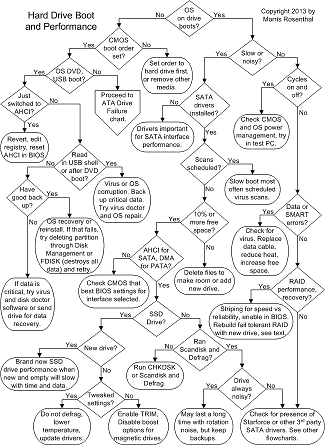
The hard drive performance flowchart deals primarily with boot issues and troubleshooting the different drive technologies in use today. Go to the full sized hard drive diagnostic flowchart. |
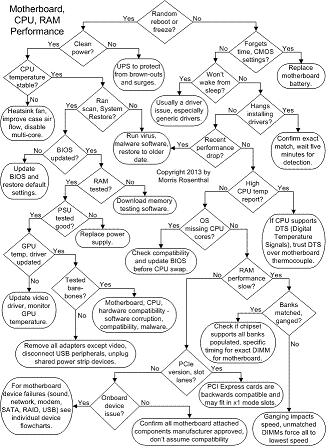
The motherboard, RAM and CPU flowchart is for troubleshooting issues like random freezes and poor performance that appear after boot. Go to the full sized motherboard diagnostic flowchart. |
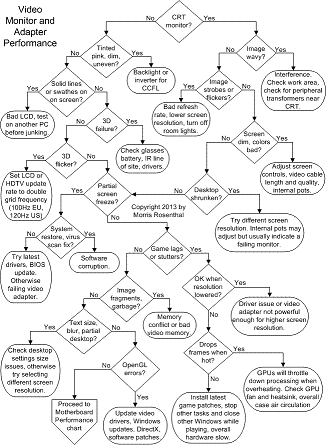
The video performance flowchart is for live screen problems, like flicker, 3D failure, display distortions, overheating and freezes, and poor response speed. Go to the full size video troubleshooting flowchart. |
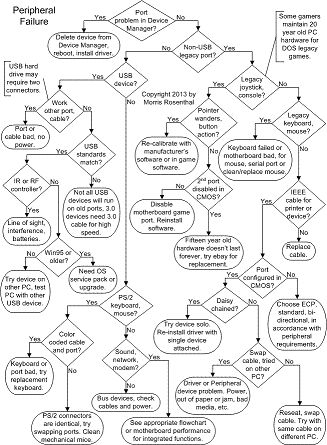
The peripheral performance flowchart covers all externally attached devices, including USB drives and printers, legacy keyboards, mice and ports. Go to the full size peripheral troubleshooting flowchart. |
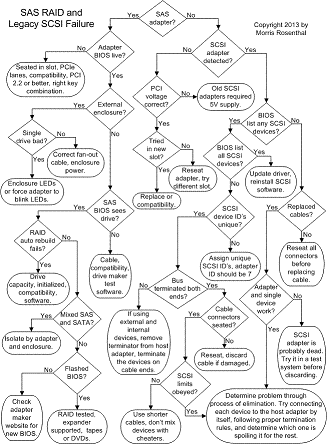
SCSI drives are rapidly losing out to SATA drives in RAID arrays because SATA is less expensive. New SCSI controllers can often handle both types. Go to the SAS and legacy SCSI troubleshooting flowchart. |
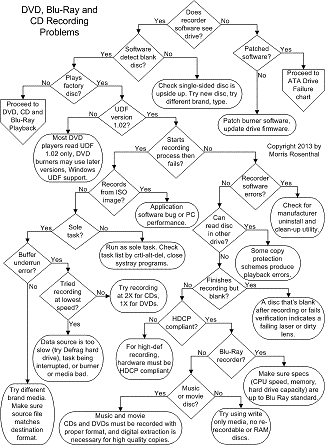
Many burner problems are due to simple issues like bad discs or poor PC performance, but copy protection schemes can also prevent ripping movies and CDs. Go to the DVD and CD recorder troubleshooting flowchart. |
When I started working on PCs back in the mid-80's, there were thirty-six individual memory chips to be inserted in motherboard sockets. Today's computers don't have half that many individual parts! But the basic tool for troubleshooting PC problems remains unchanged - it's your brain. Swapping parts without thinking about it may work in production environments where there are endless supplies of spare parts lying around, but if you're trying to troubleshoot your home computer or out on a field service job, you won't have that luxury. The majority of computer problems turn out to be software issues, especially malicious software. But intermittent hardware failures can baffle the best technicians, and the only way to work around them is to adopt a systematic approach to troubleshooting rather than shooting from the hip. The approach I teach through my websites and books is to a process of elimination that narrows down the possibilities until the failure can be identified. When you master the basic troubleshooting technique, you'll be able to apply the lesson to technologies and situations not covered here.
Guide to Computer Troubleshooting | If It Jams Home | Contact